A little light. A closer look.
Flashlight Magnifier Launcher puts a bright light, a magnifier and everyday tools one swipe from your home screen. Find your way in the dark. Read the small print.
The button opens the Google Play Store. Installing the app means you accept its Terms of Service and Privacy Policy.
Small everyday problems, sorted
A light when you need it
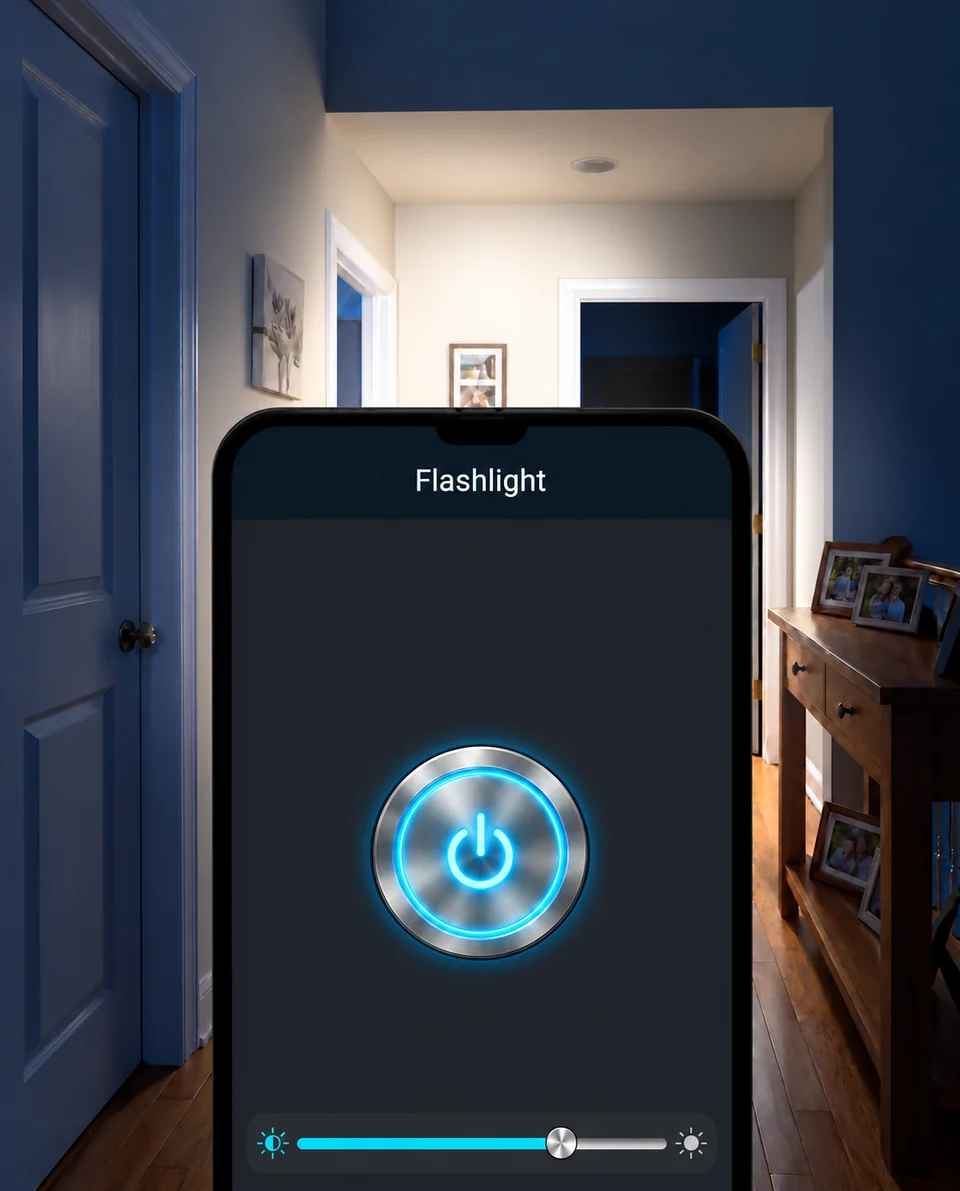
A large power button puts your phone’s flashlight within easy reach. Light the way to the door, look behind the sofa, or find the keys that slipped out of sight.
- One clear button to turn the light on or off
- Open your tools with a swipe from home
Give the small print some space
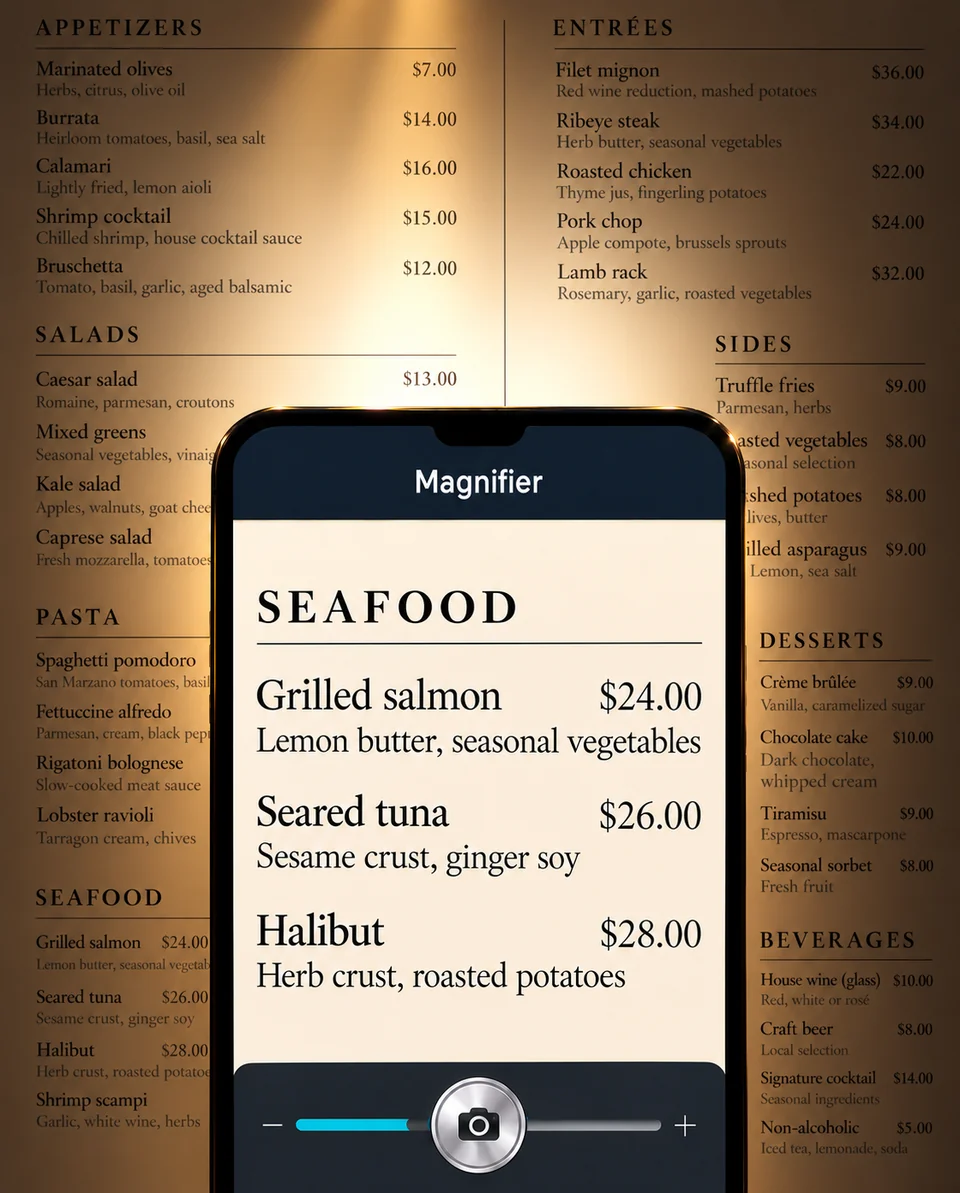
Point your camera at a label, a menu or a bit of small print. Adjust the magnification, then hold the view while you take a closer look.
- Make small text and details easier to see
- Hold the image so you can read at your own pace
A few useful extras, close at hand
Open Tools for a screen light, a compass and an SOS light signal. The essentials stay together, with large, clearly labelled controls.
- Screen light gives you a soft, full-screen light.
- Compass helps you check your direction when your phone supports it.
- SOS flashes a light signal. It does not contact emergency services.
- The magnifier asks for camera access when you open it.
Your home screen, with useful tools nearby
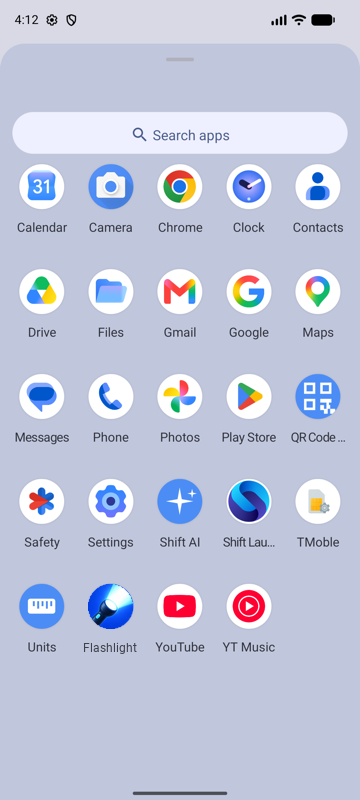
Your apps, one swipe away
Your apps stay on your phone. Swipe up to find them in the app list, and add your favourites to your new home screen.
Search without leaving home
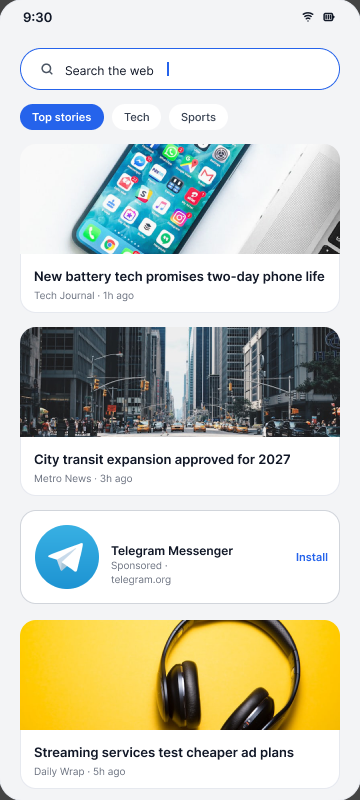
Retrieve and find web results and headlines from the bar on the home screen. You choose which search engine it uses, and you can change your mind later.
Questions people ask
Select a question to read the answer.
Do I need to make it my default home app?
Setting Flashlight Magnifier Launcher as your Home app puts the Flashlight & Magnifier tools one swipe away. It changes your home screen, but it does not remove the apps installed on your phone. You can choose your previous home app again in Android settings. Read the setup guide
How do I use the magnifier?
Open Magnifier, allow camera access when Android asks, and point the camera at what you want to read. Adjust the zoom to make details bigger. Hold the view if you want the image to stay still while you read.
Why does the magnifier ask for camera access?
The camera provides the live view that the magnifier enlarges. The flashlight uses your phone’s light. You can review the app’s permissions in Android settings at any time.
Where did all my apps go?
Your apps are still installed. Swipe up on the home screen to open the full app list. Your old arrangement of icons may look different because each home app manages its own layout.
Can I keep my wallpaper and change the search engine?
You can use your own wallpaper and choose a search engine in Home settings. Press and hold an empty part of the home screen to open those settings. Change your search engine
Does SOS call for help?
No. SOS flashes a light signal only. It does not place a phone call, send a message, share your location or contact emergency services.
Where can I download the app?
Use the Google Play buttons on this site to open the store page for Flashlight Magnifier Launcher.
What if I want to remove it?
Choose another Home app first, then uninstall Flashlight Magnifier Launcher through Android settings. The guide walks through both steps. Follow the uninstall guide
Light and a closer look, one swipe away
Everyday tools within easy reach. Your previous home app is always an option.
 Install from Google Play